To Learn InkScape
 I spent many years teaching computer use to a variety of audiences. My favorite sort of application has always been drawing programs. I've learned a number of them over the last 30 plus years. At the lab we mostly used MacDraw. One of my first home computers came with CorelDraw. Justin used CorelDraw for many of his projects at Technocrayons. I've only used Illustrator on rare occasion as it was very expensive and we didn't use it at the lab. Teaching dyslexic children at Walbridge, I mostly used Corel Draw, but also the Draw built into MS Works, MS Word, and the Draw in Libre Office. At home I've always used Corel Draw. Ten years ago InkScape wasn't very good. For 20 years I've use GIMP as my photo editor at home because PhotoShop, even Elements, is too expensive (except for work and in classes). Now (2023) I still use Gimp for photos, but CorelDraw has gotten expensive and I no longer qualify for the educational version. I've switched to Linux as my OS, and InkScape as my draw package. InkScape is now very good indeed, working well on both Linux and Windows 11. So I've been teaching myself. I've also been writing up, converting, updating, and modifying my old draw lessons for youngsters (ages 8-12) as well. Links on this page are to internet resourses that I found useful in learning and that I used for these practice pieces.
InkScape and HTML-5
 For 20 years, all pictures on the internet were raster (bit map) images. But diagrams, maps displays (pretty much everything I made other than photos) was best in vector graphics. So I was always having to convert my Draw created graphics to .png or .gif or .jpg to load onto the web. Sizing is always a pain in the neck because for bit maps it is best to resize at the file level rather than have the browser do it on the fly. Now though, browsers can use vector images in .svg files and any resize looks fine. Good! Hence this website has the actual svg files that I've been creating, not the jpeg conversion.
Logo Design
Learning InkScape via YouTube (and others)
After reading the tutorials from the InkScape site to learn something of the different tools,
I found I needed more examples to do interesting complex shapes. eventually I will include
few links to a some channels I found especially helpful and that I really like.
More to come maybe. Items on this landing page are mostly things I drew following along
(nearly exactly) with a video lesson.
 Instructional Video
Abstract Art and lessons from my sister, Barbara
I walk around, and I look at pictures hanging on the walls of libraries, hospitals, museums, offices, homes, churchs, and stores. Turns out that the art I like best are shapes and patterns and repeats. That sort of abstract. I also like super simple representations. Simplified pictures or impressionist pictures are OK, but I prefer more abstract. So, a drawing package (my favorite graphics tool) is really quite apropriate for my favorite sorts of art (I think). How fortuitous is that?!! The ART link above has some of my first attempts. There may be a few versions of several of my pieces. As far as the use of InkScape goes, I'm getting there. I like being able to edit, changing color or layout with a single click. Much easier than pencil and paper, or pastels, or paint, or ink, or crayon, or any physical medium which has no eraser or undo. So as I 'complete' a piece, I've been sending it to Barb who critiques it for me and sends back suggestions (unless she doesn't like it at all). She uses Photoshop Elements so if she wants to demo a suggestion she has to convert to jpeg (which she does with a screen print -- not very good resolution) and then painting on top of it. In the furture I'm just going to send her a jpeg version (that I can do at any rez I want by exporting from within InkScape.) We're still working it out.
Example Progression
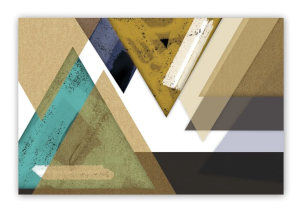
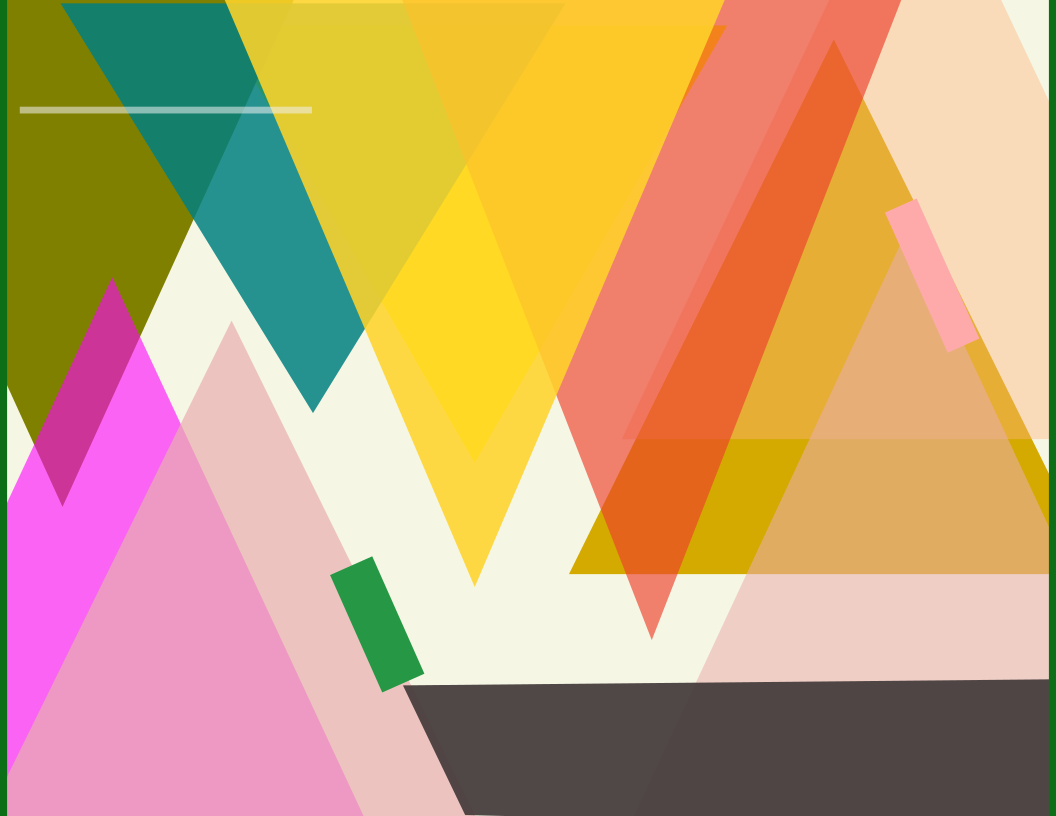
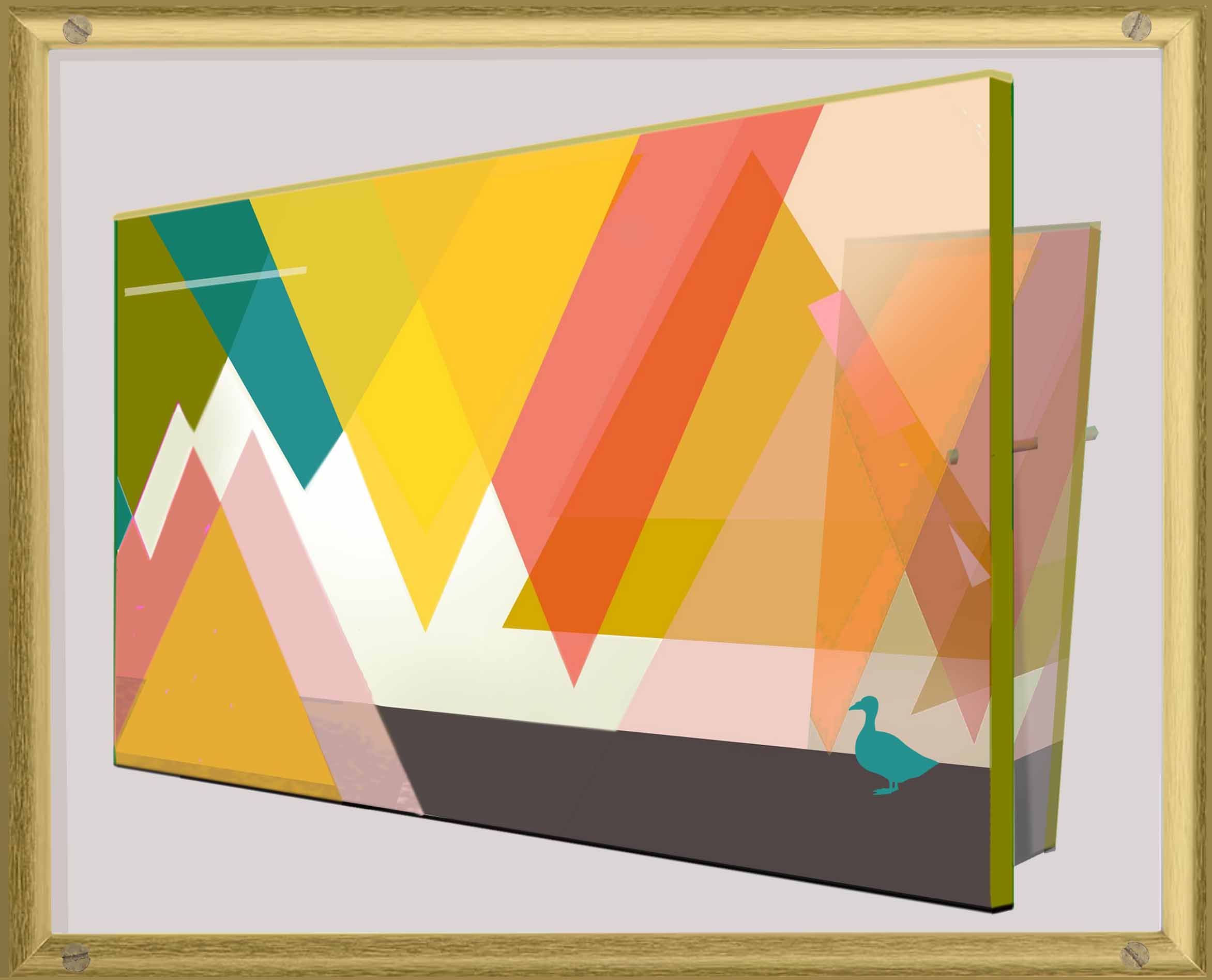
Here is a picture I copy-catted from an art sale site. I changed the colors and sent it to Barb for critique. She liked the layout but did not like my colors, especially the 'neon pink'. Then she sent this modification to illustrate some of the design principles she was explaining. Amazing. A picture of a picture from an oblique angle. Good education

Canvas Print